
How to Free Up Storage Space on Windows, Mac, and Chromebooks (2025 Guide)
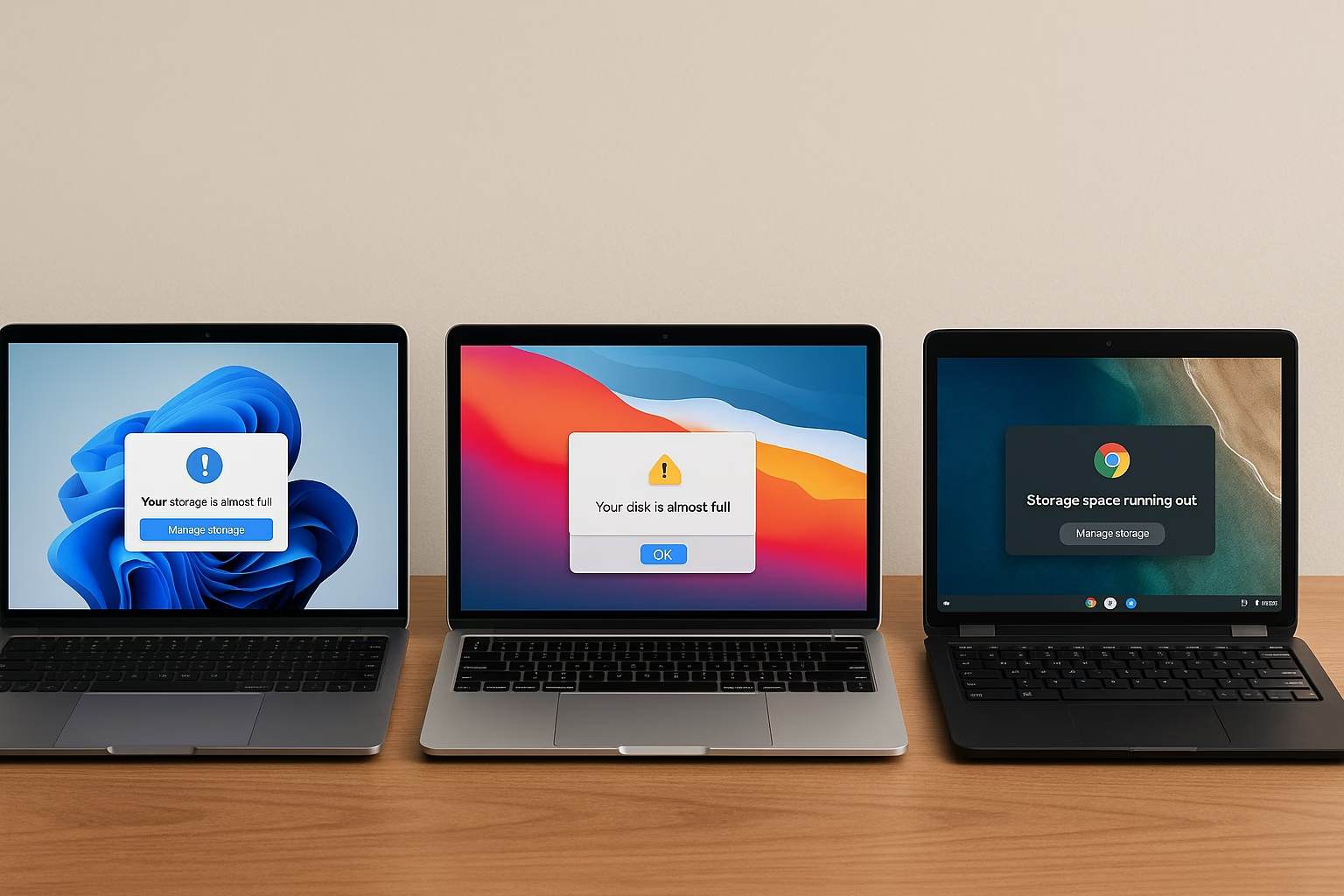
Running out of space on your computer? This guide will help you free up storage space on Windows PCs, Macs, and Chromebooks so your devices stay fast, responsive, and efficient.
Whether you’re dealing with low disk warnings or sluggish performance, there are simple steps to reclaim valuable storage across all major platforms.
General Tips to Free Up Storage Space
No matter your device, these universal tips can help you clear up space quickly:
- Uninstall unused apps and games that are taking up space.
- Empty Downloads and Trash folders—often overlooked but space-consuming.
- Offload files to cloud storage like OneDrive, iCloud, or Google Drive.
- Clear browser cache and temporary files.
- Set reminders for monthly digital cleanups to maintain performance.
For more detailed steps, keep reading for your specific operating system.
How to Free Up Storage on Windows
Windows 10 and 11 offer built-in storage tools plus third-party options:
- Enable Storage Sense to automatically remove temporary files and system clutter.
- Use the legacy Disk Cleanup Tool for deeper file removal.
- Uninstall apps from Settings > Apps > Installed Apps.
- Visualize space usage with WinDirStat, a free disk analyzer tool.
Read our step-by-step guide to free up storage on Windows 11.
How to Free Up Space on Mac
macOS has powerful built-in storage management features:
- Open Apple Menu > System Settings > General > Storage to see what’s eating up your storage.
- Move documents and media to iCloud using Optimize Storage.
- Delete old system backups, iOS files, and Mail attachments.
- Use disk visualization tools like DaisyDisk to find and remove large, hidden files.
Explore our complete Mac storage optimization guide.
Freeing Up Storage on Chromebooks
Chromebooks depend heavily on cloud storage, but you can still optimize local space:
- Use the Files app to remove downloads and media you no longer need.
- Clear cache, cookies, and site data in Chrome via browser settings.
- Minimize what’s saved offline in Google Drive.
- If supported, expand storage with a microSD card.
- Visit Google’s Chromebook storage management guide for more help.
See our Chromebook cleanup tutorial for full steps.
When to Consider Storage Upgrades
Still running low? It might be time to upgrade:
- Browse our external drive buying guide for fast backup solutions.
- Consider upgrading your internal SSD if your device allows it (mostly on Windows).
- Adopt a cloud-first workflow using platforms like OneDrive, iCloud, or Google Drive for everyday file storage.
Frequently Asked Questions
Large apps, cached data, downloads, and high-res media files build up over time. Without regular cleanups, even a 512GB drive can fill fast.
It depends. For students and casual users who rely on cloud storage, 256GB can be fine. Creatives, gamers, or anyone editing large files may need 512GB or more.
Yes, on many Windows laptops and desktops. Macs and Chromebooks often can’t be upgraded internally, but external SSDs are a great option.
Cloud storage offers flexibility and backup safety. Physical storage gives faster access and doesn’t depend on the internet. Most users benefit from a mix of both.
Final Thoughts
By following these tips, you can free up storage space on your Windows PC, Mac, or Chromebook and keep your device running smoothly long-term. Regular digital maintenance combined with smart use of cloud storage can dramatically improve performance and extend your system’s life.
For detailed, OS-specific instructions, check out our focused guides:
Thinking about upgrading your drive? Don’t miss our Laptop Storage & RAM Needs Guide (2025) for practical buying advice.


