
How to Free Up Storage Space on a Chromebook (2025 Guide)
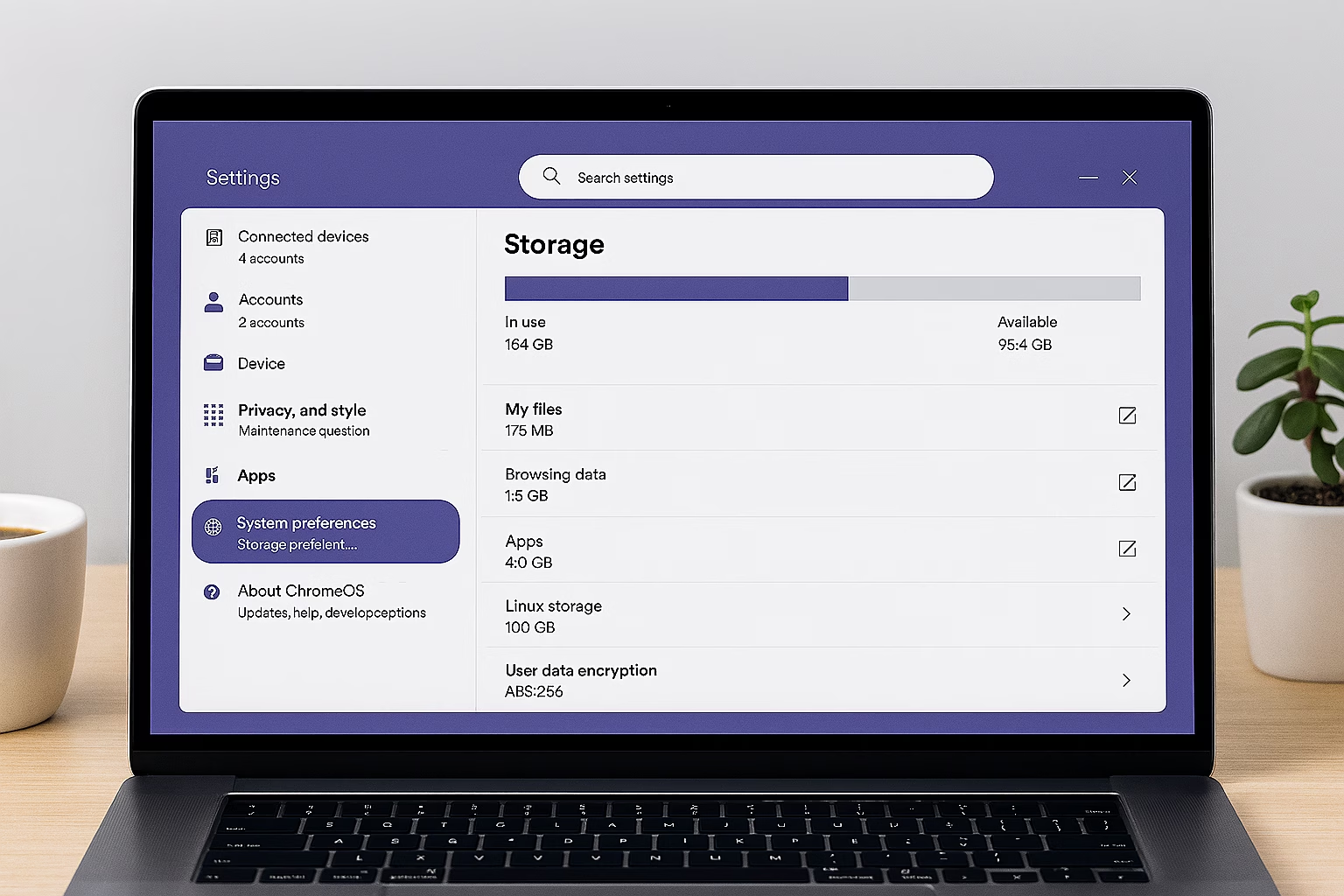
Running out of room on your Chromebook? With limited local storage and increasing reliance on offline files and Android apps, it’s common to feel the crunch. Fortunately, ChromeOS includes simple tools to help you free up storage space on a Chromebook without the need for risky software or guesswork.
This step-by-step guide based on the latest version of ChromeOS walks you through checking your storage, cleaning up files, managing apps, and knowing when to reset.
1. Check Available Storage on Your Chromebook
Start by reviewing what’s taking up space:
- Click the time in the bottom-right corner of your screen and select the gear icon to open Settings
- Go to System Preferences > Storage management
- Review the breakdown, which includes:
- Downloads
- Browsing data
- Offline files
- Android storage
- Other users
This helps you identify where to focus your cleanup efforts.
Learn more from Google’s official Chromebook storage guide.
2. Clear Downloads and Local Files
Many Chromebook users forget that files downloaded from the web or saved from apps go to local storage.
- Open the Files app
- Go to the Downloads folder
- Sort by size or date to find large or outdated files
- Delete what you no longer need, or drag items into Google Drive to back them up before removing
Tip: Downloads are not backed up to the cloud, so clean this folder often.
3. Manage Google Drive Sync and Offline Files
If you use Google Drive offline, it stores local copies that can take up space.
To reduce this:
- Open the Files app and click on Google Drive
- Right-click any file or folder and uncheck Available offline
- In Google Drive settings, disable offline mode for folders you don’t need regularly
This keeps Drive cloud-first without storing everything locally.
4. Remove Unused Android or Linux Apps
Apps can eat up more space than you think, especially Android games or Linux packages.
To remove Android apps:
- Go to Settings > Apps
- Click Manage your apps
- Select any unused app and click Uninstall
For Linux (if enabled):
- Go to Settings > Developers > Linux development environment
- Click Remove to delete the entire Linux setup if you no longer need it
This can free up several gigabytes, especially if you’ve installed development tools or large packages.
5. Clear Browser Cache and Data
Chrome saves data to speed up browsing, but over time, it builds up.
- Open Chrome
- Go to Settings > Privacy and security > Clear browsing data
- Select:
- Cached images and files
- Cookies and other site data
- Optional: Download history
Clearing this won’t remove passwords or bookmarks, but can recover valuable space.
6. Use ChromeOS Storage Management Tools
Back in Settings > Storage management, ChromeOS provides suggestions:
- Review large files
- Review offline files
- Clear browsing data
- Remove Android apps
These shortcuts are safe to use and focus on common space hogs.
7. Use External Storage Devices
If you’re regularly running out of room, using external storage can help free up storage space on your Chromebook without deleting important files:
- USB flash drives – Ideal for documents, schoolwork, or short-term storage
- External hard drives or SSDs – Useful for media, backups, or large files
- microSD cards – Many Chromebooks have built-in card slots for expandable storage
To use external storage:
- Plug in the device
- Open the Files app
- Locate the external drive in the left-hand sidebar
- Drag files into the device to move them off your Chromebook
Note: Files on external drives don’t sync to Google Drive. Use them for archives or non-critical items.
8. Powerwash Your Chromebook (Optional Reset)
If you’ve cleaned everything and still can’t recover enough space, or if you’re seeing storage-related errors, a factory reset (called Powerwash) can restore your Chromebook to its original state.
⚠️ Important: Powerwash will erase all local data, including files in your Downloads folder and any unsynced app data. Be sure to back up everything you want to keep to Google Drive or an external device before proceeding.
To Powerwash:
- Go to Settings > Reset settings
- Click Reset > Powerwash
- Follow the prompts to reboot and reset your Chromebook
This should be a last resort, but it’s a reliable way to reclaim space and start fresh.
Frequently Asked Questions
No, most Chromebooks don’t allow internal storage upgrades. Instead, use cloud storage or a USB drive for expansion.
Yes. Powerwash resets your Chromebook to factory defaults and erases all local data. Back up before using it.
Offline files are stored locally and are accessible without the internet. Cloud files (like in Google Drive) are stored online and take up no space unless marked “Available offline.”
Final Thoughts
Knowing how to free up storage space on a Chromebook helps keep your device fast, functional, and frustration-free. Stick with built-in tools, manage what you store offline, and use external storage or Drive backups when needed.
Need help with other devices? Visit our Storage Cleanup Hub for Windows and Mac cleanup tutorials.


