
How to Speed Up a Chromebook in 2025: Quick Fixes & Optimization Tips
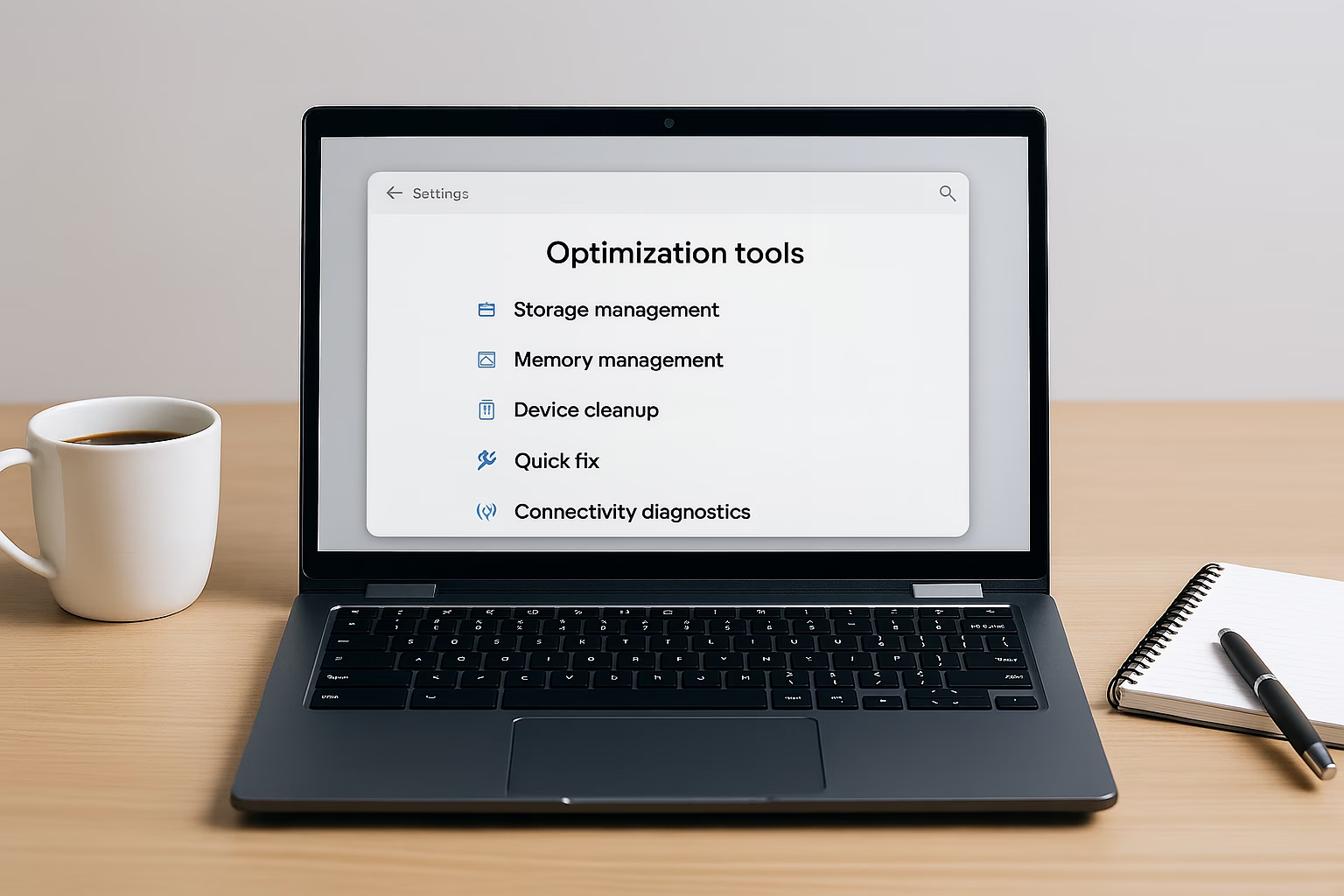
Is your Chromebook running slow or not performing as smoothly as it used to? Whether it’s sluggish boot times, laggy web browsing, or slow app performance, it can be frustrating, especially when Chromebooks are known for their speed and simplicity. Fortunately, if you’re wondering how to speed up Chromebook performance, there are several easy fixes and optimizations you can try before considering a replacement.
In this guide, we’ll walk through practical tips to help you speed up your Chromebook in 2025, from clearing clutter to updating the system and beyond.
1. Restart Your Chromebook
It may sound simple, but one of the easiest ways to speed up your Chromebook is to perform a full restart. Chromebooks are designed to enter sleep mode when you close the lid, but this doesn’t fully clear the memory or stop background processes. Over time, this can cause your device to slow down.
How to Restart a Chromebook Properly
- Click the time icon in the bottom-right corner to open the system tray.
- Select the Power button to shut down your device.
- Wait a few seconds, then power it back on.
Alternatively, you can press and hold the Power key until the device turns off, then restart it.
Tip: Restart your Chromebook every few days to keep it running smoothly, especially if you keep many tabs or apps open regularly.
2. Clear Browsing Data & Cache
Over time, your Chromebook’s browser collects cached data, cookies, and browsing history, which can start to slow down performance, especially when loading websites or using web apps.
Clearing this data can help speed up your Chromebook by freeing up storage and ensuring Chrome runs more efficiently.
How to Clear Browsing Data on a Chromebook
- Open the Chrome browser.
- Click the three-dot menu in the upper-right corner.
- Go to Settings > Privacy and security > Clear browsing data.
- Choose a time range (select All time for a deep clean).
- Check Cookies and other site data and Cached images and files.
- Click Clear data.
Tip: Clearing the cache won’t remove your saved passwords or autofill data if you leave those options unchecked.
Regularly clearing your browsing data helps maintain browser performance and can resolve issues like slow-loading sites or unresponsive tabs.
3. Manage Extensions and Apps
Installing too many Chrome extensions and apps can bog down your Chromebook, as each one may run background processes that consume memory and processing power even if you’re not actively using them.
Reviewing and removing unnecessary extensions and apps is a simple yet effective way to speed up your Chromebook.
How to Manage Chrome Extensions
- Open Chrome and click the three-dot menu.
- Navigate to Extensions > Manage Extensions.
- Disable or remove any extensions you don’t use regularly.
How to Remove Unused Apps
- Click the Launcher (circle icon in the bottom-left).
- Right-click any app you don’t need.
- Select Uninstall or Remove from Chrome.
Tip: Less is more when it comes to extensions. Only keep the ones you use frequently to avoid unnecessary strain on system resources.
By keeping extensions and apps to a minimum, you can free up memory and processing power, making your Chromebook faster and more responsive.
4. Check for Chrome OS Updates
Keeping your Chromebook up to date is crucial for both performance and security. Google regularly releases Chrome OS updates that can improve system speed, fix bugs, and enhance overall efficiency.
If your device is running an outdated version of Chrome OS, updating it can help speed up your Chromebook.
How to Check for Updates on a Chromebook
- Click the time icon in the bottom-right corner.
- Select the Settings gear icon.
- Navigate to About Chrome OS at the bottom of the sidebar.
- Click Check for updates.
If an update is available, your Chromebook will download and install it automatically. A restart will usually be required to complete the process.
Tip: Keeping Chrome OS updated also ensures your device gets the latest security patches, which helps protect against malware and performance issues.
5. Reduce Open Tabs and Processes
Chromebooks are designed for efficiency, but having too many open tabs, apps, or background processes can still strain system resources, especially on devices with limited RAM.
Chrome now includes built-in tab management features that help optimize performance automatically:
- Tab Throttling: Minimizes CPU usage for background tabs.
- Tab Discarding: Automatically suspends inactive tabs when system memory is low, reloading them when you return.
Still, for the best results, you can manually monitor and manage processes to speed up your Chromebook.
How to Check and Manage Processes
- Press Search + Esc to open the Chrome OS Task Manager.
- Review the list of active tasks, including tabs, apps, and extensions.
- Select any process that’s using a lot of memory or CPU and click End Process.
Tips for Managing Tabs
- Close tabs you’re no longer using to free up memory instantly.
- Bookmark important sites instead of leaving them open.
- Consider lightweight tab managers if you need more control, though Chrome’s built-in features suffice for most users.
Tip: Keeping your tab count manageable and checking Task Manager regularly can prevent slowdowns and improve multitasking responsiveness.
6. Powerwash (Factory Reset)
If your Chromebook is still running slow despite trying the previous steps, a Powerwash (or factory reset) can help restore it to like-new performance. This process wipes all local data and resets the system to its original state, which can clear out any lingering issues, corrupted files, or problematic settings.
How to Perform a Powerwash
- Click the time icon in the bottom-right corner and open Settings.
- Navigate to Reset Settings (you can search “Powerwash” in the Settings search bar).
- Click Reset next to Powerwash and follow the on-screen instructions.
Important Reminder
Powerwashing will erase all local files, so be sure to:
- Back up important files to Google Drive or an external storage device.
- Sync your settings and apps via your Google account.
Tip: After a Powerwash, reinstall only the apps and extensions you truly need to avoid reintroducing unnecessary clutter.
A Powerwash is a great last resort when your Chromebook remains sluggish even after performing other optimizations.
Bonus Tips to Keep Your Chromebook Running Smoothly
In addition to the main fixes, here are some extra tips to help maintain your Chromebook’s performance over time:
- Restart Regularly: A simple restart every few days clears out memory and temporary files, helping your Chromebook stay responsive.
- Keep Downloads Folder Clean: Regularly delete unnecessary files from your Downloads folder to free up storage space.
- Use an SD Card or External Storage: If your Chromebook has limited internal storage, adding an SD card or using an external hard drive can help manage files without slowing down the system.
- Monitor Available Storage: Go to Settings > Device > Storage Management to keep an eye on how much space you’re using. Low storage can impact performance.
Tip: Chromebooks typically have less onboard storage than traditional laptops, so periodic maintenance helps prevent slowdowns.
Frequently Asked Questions
Sudden slowdowns can be caused by too many open tabs, extensions, or apps running in the background. Clearing cache, restarting, and updating Chrome OS can help restore performance.
You can press Search + Esc to open the Chrome OS Task Manager, which shows apps, tabs, and extensions using system resources. From there, you can end any processes that are using too much memory or CPU.
Yes, Powerwashing (factory reset) clears out all local data and resets your Chromebook to its original state, which can fix persistent performance issues caused by apps, extensions, or system errors.
An SD card, if your Chromebook supports one, won’t directly speed up your system, but it can help free up internal storage by offloading files, which can indirectly improve performance if your device is running low on space.
Restarting your Chromebook every few days is a good habit, especially if you leave it running for extended periods or keep many tabs open.
Final Thoughts
Chromebooks are known for their simplicity and speed, but like any device, they can slow down over time. By following these tips on how to speed up Chromebook performance, you can keep your device running smoothly for years to come.
Whether it’s clearing cache, managing apps and extensions, or performing a Powerwash, these steps can breathe new life into your Chromebook without needing to upgrade to a new device.
Related Guides You Might Find Helpful
- Chromebook vs Windows Laptop: Which One is Right for You?
- Best Chromebooks Under $500 in 2025
- How to Check Your Chromebook’s Auto Update Expiration (AUE) Date
If your Chromebook is still struggling after trying these optimizations, it might be time for an upgrade. SysPros offers personalized consulting to help you choose the right device for your needs. Contact us here.


