
How to Free Up Storage Space on Windows 11 (2025 Guide)
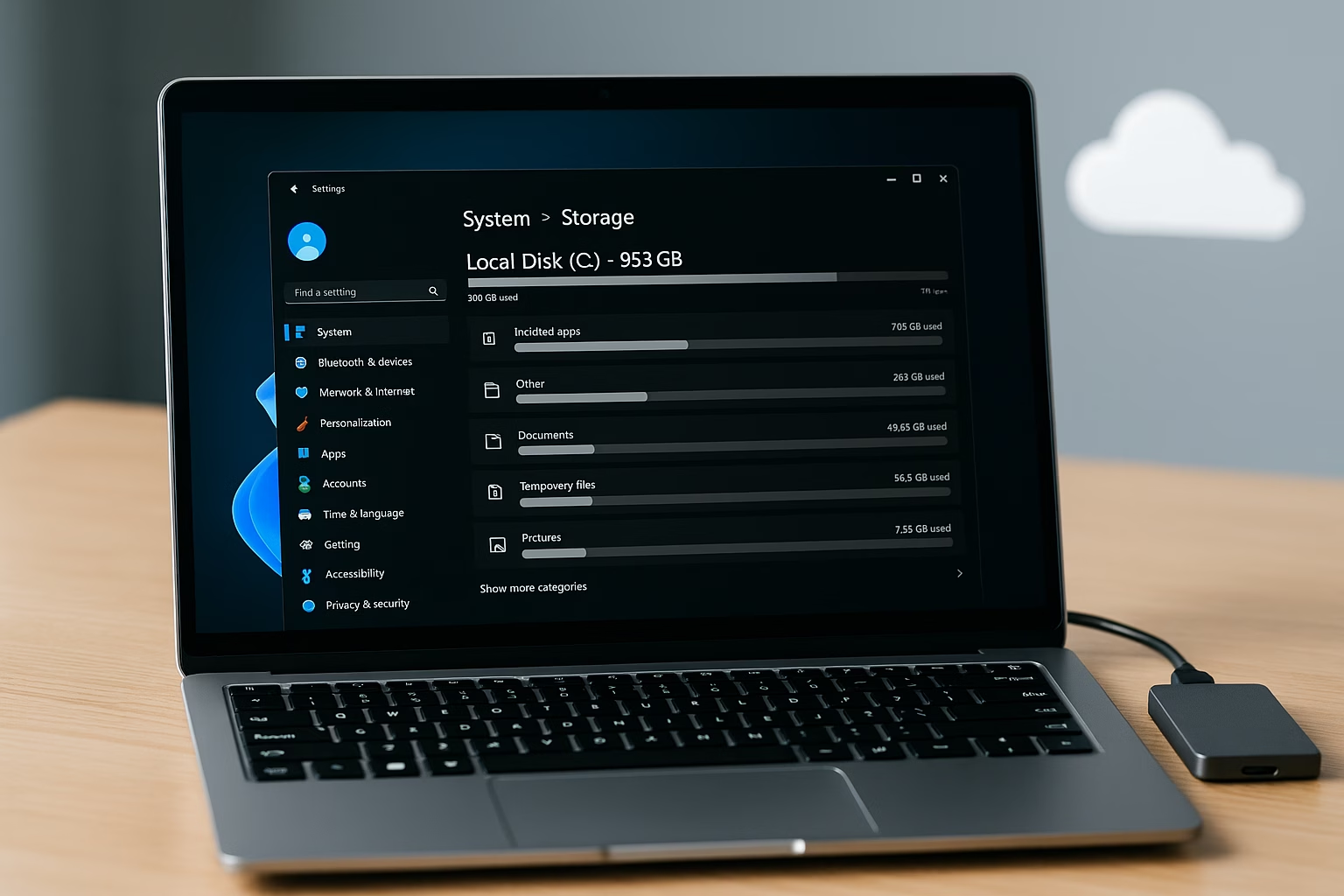
Is your Windows 11 PC running out of space? Whether you’re getting low storage warnings or trying to install a major update, clearing out clutter is essential for performance and stability. In this guide, you’ll learn how to free up storage space on Windows 11 using the latest tools, cleanup features, and storage-saving best practices.
1. Check What’s Taking Up Space
Start by seeing exactly where your storage is going:
- Open Settings (press
Windows + Ior search “Settings” from the Start menu) - Click System in the sidebar
- Select Storage from the list
- Under Local Disk (C:), review the storage usage breakdown
- You’ll see categories like Installed apps, Temporary files, Documents, Pictures, etc.
- Click Show more categories to expand the list
Optional: If your PC has more than one drive, you can view those too:
- Scroll down to Storage management
- Click Advanced storage settings > Storage used on other drives
- Select any secondary drive (e.g., D:, E:) to view its storage breakdown
Tip: Pay close attention to large categories like “Apps” and “Temporary files”; these are usually the fastest wins for cleanup.
2. Use Storage Sense
Storage Sense helps keep your PC clean by automatically deleting temporary files, emptying the Recycle Bin, and managing OneDrive storage.
Here’s how to turn it on and adjust settings:
- Open Settings > System > Storage
- Under Storage management, click Storage Sense
- Turn on Automatic User Content Cleanup
- On this screen, adjust settings such as:
- How often Storage Sense runs — every day, week, month, or only when disk space is low
- When to delete files in the Recycle Bin
- When to clean out the Downloads folder
- Whether to remove unused OneDrive files from local storage
You can also click Run Storage Sense now at the bottom to free up space immediately.
Learn more at Microsoft’s Storage Sense Guide
3. Run Cleanup Recommendations
Windows 11 includes a built-in cleanup wizard:
- Navigate to Settings > System > Storage
- Under Storage management, click Cleanup recommendations
- You’ll see options to remove:
- Large or unused files
- Duplicate files
- Temporary system files
- Unused apps
- Files synced to the cloud
Review each item before deletion to avoid losing important data.
4. Manually Delete Temporary Files
For even more control:
- Go to Settings > System > Storage > Temporary files
- Select categories like:
- Delivery Optimization Files
- Recycle Bin
- Windows Update Cleanup
- Click Remove files once you’ve selected what to delete
Tip: These files are safe to delete unless you plan to roll back a recent update. This can be a quick way to free up storage space on Windows 11 without affecting performance.
5. Uninstall Unused Apps and Games
To free up space quickly:
- Go to Settings > Apps > Installed apps
- Sort by size
- Uninstall large or unused software, trialware, or preinstalled apps
Note on Steam and Epic Games:
If you play PC games, note that titles installed through platforms like Steam, Epic Games Launcher, or Xbox Game Pass might not show up in the Installed Apps list. These platforms manage their own game storage.
- To uninstall Steam games:
- Open Steam > Library
- Right-click a game > Manage > Uninstall
- Or go to Steam > Settings > Storage to see all game locations and sizes
- To uninstall Epic Games:
- Open the Epic Games Launcher
- Go to Library
- Use the Filters on the right side of the screen to choose Installed
- Click the three dots (⋯) next to a game > choose Uninstall
By default, both launchers install games to your C: drive unless you change it. Consider moving games to a secondary or external drive to save space on your main SSD.
6. Move Files to Cloud or External Storage
If you’re working with a 256GB (or smaller) drive, offloading files can make a big difference.
Use OneDrive:
Most Windows 11 PCs come with OneDrive preinstalled, but syncing may not be set up yet.
If OneDrive is already running:
- Open File Explorer
- Navigate to your OneDrive folder (left sidebar)
- Right-click any file or folder and select Free up space
- This removes the file from local storage while keeping it available in the cloud
If OneDrive isn’t set up yet:
- Open the OneDrive folder in File Explorer
- Click Set up syncing when prompted
- Sign in with your Microsoft account
- Choose which folders (e.g., Desktop, Documents, Pictures) to sync
- Once synced, use Files On-Demand to keep files cloud-only
Pro Tip: You can check or change OneDrive settings by clicking the cloud icon in your system tray and going to Settings > Sync and backup > Manage backup.
Use External Storage:
- An external SSD or USB-C flash drive is ideal for large media files or backups
- Optional: Use Windows Backup to automate external storage use
See our External Drive Buying Guide for recommendations
7. Optional Advanced Tips (For Power Users)
These tips are safe when used correctly, but you can skip them if you’re not sure what they do.
- Clear Microsoft Store cache
- Press
Windows + R, typewsreset, and hit Enter. This refreshes the Microsoft Store and can fix download issues.
- Press
- Disable Hibernation (frees 2–8GB)
- If you don’t use hibernation, open Command Prompt as Administrator and run:
powercfg -h off- ⚠️ Only do this if you use sleep mode exclusively and don’t rely on resume-from-hibernate.
- If you don’t use hibernation, open Command Prompt as Administrator and run:
- Delete old system restore points
- Search Create a restore point > Configure > Delete, then reduce disk usage if needed.
- ⚠️ Make sure you have a current restore point or backup first.
- Search Create a restore point > Configure > Delete, then reduce disk usage if needed.
Final Thoughts
Windows 11 makes it easier than ever to manage disk space with tools like Storage Sense, Cleanup Recommendations, and cloud integration via OneDrive. Whether you’re maintaining daily performance or preparing for major updates, these steps will help you free up storage space on Windows 11 reliably.
Need to clean up other devices too? Check our storage cleanup hub for Mac and Chromebook guides.


