
How to Free Up Storage Space on Mac (2025 Guide)
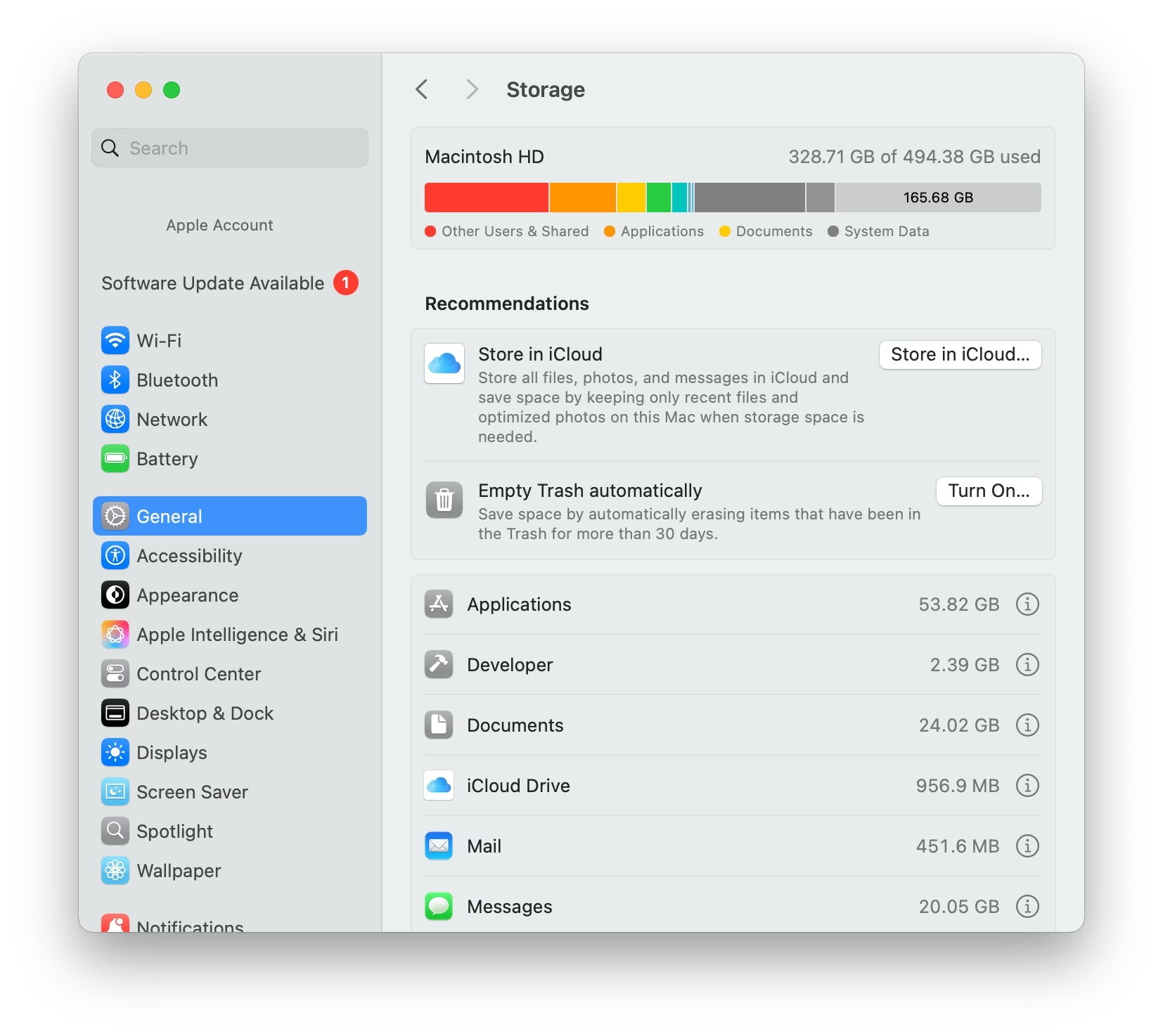
Running low on space on your Mac? Whether you’re on a base-model MacBook Air or a power user with years of files, knowing how to free up storage space on Mac can help you avoid performance issues, update delays, and file clutter.
This guide is tailored for macOS Sequoia and focuses on built-in tools and safe manual cleanup options with optional notes for power users.
1. Check Storage Usage in macOS Sequoia
To see what’s taking up space:
- Open System Settings
- Go to General > Storage
- Wait while macOS scans your disk. You’ll then see a categorized breakdown:
- Apps, Documents, Photos, Messages, System Data, and more
- Click the ℹ️ icon next to each category for details or cleanup options
This is the best way to identify space hogs in macOS Sequoia.
Older Method:
On older versions of macOS, you can check your storage by opening the Apple menu > About This Mac > Storage, which redirects you to the same interface.
2. Use Built-in Tools to Free Up Storage Space on Mac
macOS offers helpful cleanup suggestions directly within General > Storage, including:
- Store in iCloud: Offload files, photos, and messages to the cloud
- Optimize Storage: Delete watched Apple TV content and Mail attachments
- Empty Trash Automatically: Auto-delete trashed files after 30 days
- Review Large Files: Quickly identify files you may no longer need
These are safe, system-approved actions that most users can use confidently.
3. Enable iCloud and Optimize Local Storage
iCloud Drive helps free up storage space on Mac by keeping only your most frequently used files on your Mac, with others stored safely in the cloud.
To enable it:
- Open System Settings
- Click iCloud in the sidebar (or click your name at the top left, then select iCloud)
- Turn on iCloud Drive
- Enable Optimize Mac Storage
This allows macOS to remove local copies of older files, while keeping them instantly available from iCloud when needed.
To manually remove a local file:
- Right-click it in Finder and choose Remove Download
Note: iCloud includes only 5GB of free storage. To use it meaningfully, most users will need a paid iCloud+ plan, starting at $0.99/month.
4. Delete Unused Apps and Large Files
Uninstalling unused apps is a great way to reclaim space:
- Open Finder > Applications
- Switch to List View and sort by Size
- Drag any unused apps to the Trash, then empty it
Also check:
- The Downloads folder for old installers and media files
- The Recents tab in Finder to spot large forgotten files
- Your Desktop, which is often overlooked
Most users don’t need third-party apps to uninstall software; Finder handles it just fine.
5. Optional: Clear Cache Files (Advanced)
macOS creates temporary files called caches to help apps and the system run faster. Over time, these can grow in size, though they’re usually harmless.
If you’re comfortable navigating system folders, you can manually clear user-level caches:
- In Finder, press
Command + Shift + G - Enter:
~/Library/Caches - You can delete the contents of specific app folders (e.g., Safari, Zoom), but leave the folders themselves intact
⚠️ Important:
- Only delete from the user cache folder (
~/Library/Caches) - Never touch
/Systemor/Librarycaches - If you’re unsure, skip this step — macOS manages caches automatically
In most cases, you’ll only regain a few hundred megabytes. It’s best used as a last resort.
6. Optional: Use Cleanup Tools Carefully
Some users explore third-party apps to analyze or clean their disk, but these tools can have unintended side effects, especially when deleting caches or system files.
⚠️ Use caution and research thoroughly before installing any system cleaner.
If you’re a power user and want visibility into your disk space, these tools are commonly used:
- DaisyDisk – Read-only disk visualizer; great for seeing what’s using space
- AppCleaner – Helps remove all files associated with an app
- CleanMyMac X – Full-featured cleanup suite (use with discretion)
For most users, macOS’s built-in tools are more than sufficient.
7. Don’t Forget to Empty the Trash
After deleting files, they still occupy space in your Trash until they are permanently removed.
- Right-click the Trash icon in your Dock
- Select Empty Trash
To automate this, enable Empty Trash Automatically in General > Storage > Recommendations.
Frequently Asked Questions
No, these categories contain required system files, logs, and caches. You can reduce their size, but not delete them directly.
Yes, especially when Optimize Mac Storage is enabled. Older files are stored in the cloud and removed locally, while remaining accessible.
Not usually. macOS provides safe, built-in tools for most storage issues. Third-party apps can help but should be used with care.
Make sure you’ve emptied the Trash, cleared large downloads, and reviewed cache folders. A restart can help the system recalculate free space.
Final Thoughts
Learning how to free up storage space on Mac with Sequoia’s built-in tools can save you time, prevent performance slowdowns, and delay expensive storage upgrades.
Stick to system-native options, use iCloud if you’re comfortable with cloud syncing, and consider cache cleanup or manual file review as needed.
Looking to clean other devices too? Check out our Free Up Storage Space Hub for Windows and Chromebook guides.


