External Storage for Laptops in 2025: What to Buy & Why
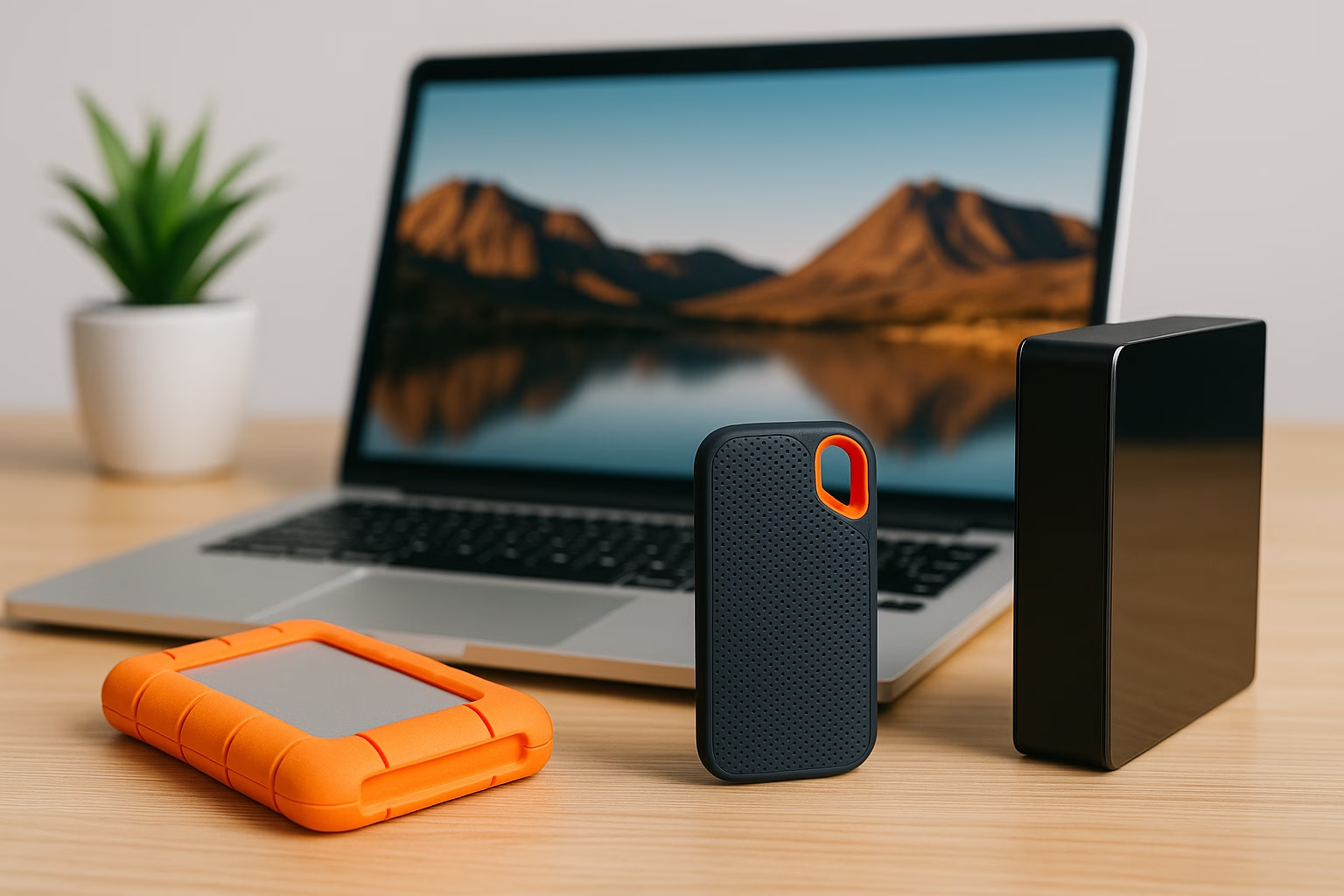
Running out of internal storage on your laptop can grind your workflow to a halt. Whether you’re a student, creative professional, or remote worker, external storage offers fast, flexible, and affordable solutions. This guide helps you smartly choose external storage for laptops and recommends how to maintain it for longevity.
Note: While focused on laptops, desktop users will also benefit from most of these options, especially desktop-style HDDs for backups.
Affiliate Disclosure
This post contains affiliate links. If you click a link and make a purchase, we may earn a small commission at no extra cost to you. As an Amazon Associate, we earn from qualifying purchases.
HDD vs SSD: What’s the Difference?
| Solution | Speed | Durability | Cost per GB | Best Use |
|---|---|---|---|---|
| HDD | Moderate | Mechanical (vulnerable to drops) | Lowest | Media libraries, backups |
| SSD | Fast (no moving parts) | More durable | Higher | Portability, daily use, editing |
When shopping for external storage for laptops, the first choice most buyers face is SSD vs HDD.
- SSDs deliver faster access and better resilience to physical stress, ideal when you’re working on the go.
- HDDs offer the most storage for your dollar, perfect for archiving large files.
Best External Storage Options for Laptops in 2025
Best External SSDs for Laptops
Compact and speedy, external SSDs shine in scenarios like video editing, large file transfers, or when you need reliability in a portable design.
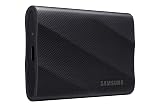
- NONSTOP SPEED: Race through projects with our fastest SSD for creators; Load, edit and transfer with sustained read and write speeds of up to 2,000MB/s1; The T9 Portable SSD performs at high speeds even during longer processes
- DYNAMIC THERMAL GUARD: When you’re elbow-deep in a passion project, the T9 Portable SSD stays cool; Its advanced thermal solution withstands and controls heat to keep the SSD at ideal temperatures—even in heavy use2
- ADAPTS TO EVERY NEED: Whether you’re using a desktop, camera or a gaming console3, count on the T9 Portable SSD for extensive compatibility; It’s a true team player when it comes to heavy-duty application usage or file-saving
- STRONG. SOLID. STABLE: From concept to completion – the T9 Portable SSD gives you the longevity to last through heavy use with one convenient drive that dares to go the distance
- WORKS LIKE MAGIC: Your T9 Portable SSD performs like new with the always up-to-date Magician Software; With firmware updates, extra encryption and continual monitoring of your drive health, it works like a charm


- Get NVMe solid state performance with up to 1050MB/s read and 1000MB/s write speeds in a portable, high-capacity drive(1) (Based on internal testing; performance may be lower depending on host device & other factors. 1MB=1,000,000 bytes.)
- Up to 3-meter drop protection and IP65 water and dust resistance mean this tough drive can take a beating(3) (Previously rated for 2-meter drop protection and IP55 rating. Now qualified for the higher, stated specs.)
- Use the handy carabiner loop to secure it to your belt loop or backpack for extra peace of mind.
- Help keep private content private with the included password protection featuring 256‐bit AES hardware encryption.(3)
- Easily manage files and automatically free up space with the SanDisk Memory Zone app.(5)
High-Capacity External HDDs for Media & Backups
If your workflow demands hundreds of gigabytes or even terabytes, consider a portable or desktop external HDD.
- Desktop-style HDDs offer massive capacities and are surprisingly affordable; just note they may require their own power source.
- Portable models add convenience while retaining large capacities.

- Easy-to-use desktop hard drive—simply plug in the power adapter and USB cable
- Fast file transfers with USB 3.0
- Drag-and-drop file saving right out of the box
- Automatic recognition of Windows and Mac computers for simple setup (Reformatting required for use with Time Machine)
- Enjoy peace of mind with the included limited warranty and Rescue Data Recovery Services

- Plug-and-play expandability
- SuperSpeed USB 3.2 Gen 1 (5Gbps)
Ultra-Portable Drives for On-the-Go Use
Flash drives are a compact form of external storage for laptops, perfect companions for Chromebooks or travel laptops with minimal storage.
Even budget flash drives now reach impressive speeds and can offer near-SSD performance at ultra-compact sizes.

- The flash drive for USB Type C devices
- Easily transfer files between smartphones, tablets and computers
- Free up space on your Android smartphone (mobile device requires USB Type C port and on the go (OTG) support)
- Retractable design with a reversible USB Type C connector and a traditional USB connector
- High speed USB 3.1 performance of up to 150MB/s read speeds (USB Type C port with USB 3.1, Gen. 1/USB 3.0 support required; Based on internal testing; performance may be lower depending upon host device)
NVMe Enclosures: DIY Speed at a Lower Cost
If you’re looking for blazing speed and customization, build your own NVMe SSD setup. Choose an inexpensive NVMe enclosure for tool-free installation, then pair it with any M.2 NVMe drive. This builds a powerful, fast external drive with flexibility and often saves money.

- 10Gbps NVMe Enclosure: With the latest USB 3.2 Gen2, this M.2 enclosure can achieve a data transfer rate of 10Gbps. Backward compatible with USB 3.1 and USB 3.0. Note: 10G speeds need to be matched with a USB C 3.2 GEN2 data cable
- Tool-free SSD Enclosure: Tool-free NVMe SSD enclosure for quick and easy installation. Plug and play, no drivers required. The buckle design of the M.2 SSD enclosure can ensure stable and fast transfer
- Broad Compatibility: The UGREEN M.2 NVMe SSD enclosure is specially designed to support NMVe protocol M/B&M keys and for 2230/ 2242/ 2260/2280 size SSDs up to 8TB. The M.2 NVMe enclosure is applicable for Windows, Mac OS, Linux, Android, IOS systems.(Does not support SATA NGFF SSD or mSATA SSD)
- Security & Stability: USB C NVMe enclosure adopts advanced RTL9210 chip with short-circuit, over-current and multi-protection to ensure the safety of your SSD and valuable data, and supports UASP/ Trim with high transfer speed
- Compact & Portable: This ultra-slim aluminium external NVMe enclosure with extra silicone case is portable yet durable, and much easier to carry with this M.2 to USB adapter, making it ideal for travelling
Connectivity: USB-A, USB-C, Thunderbolt & NVMe
Make sure your laptop ports match the drive’s interface:
- USB-A: Widely supported, but slower speeds.
- USB-C (3.2 Gen 2+): Common on newer laptops; supports fast data transfers.
- Thunderbolt 4: Highest performance, ideal for heavy workloads and future-proofing.
- NVMe Enclosures: Offer near internal SSD speeds, great for power users.
Maintenance Tips for External Drives
- Safe ejecting advice: On Windows 10/11 with Quick Removal (write caching disabled), you often don’t need to eject before unplugging. But for macOS, Linux, or if using Better Performance mode, always eject to avoid corruption.
- Formatting tips:
- Windows-only: NTFS
- Mac-only: APFS
- Cross-platform: exFAT (best for most users)
- Chromebooks work seamlessly with exFAT or FAT32
- Avoiding file system corruption: Always close files and wait for write operations to finish, especially important when using write caching.
Cloud Storage vs External Drives (Quick Comparison)
| Option | Strengths | Drawbacks |
|---|---|---|
| Cloud Storage | Accessible from any device, built-in backup, share files easily | Requires subscription, slower transfers, privacy/security concerns |
| External Drives | One-time cost, fully offline access, no monthly fees | Requires safe handling; potential for failure; recommend regular backups |
Smart tip: For critical data, use both local and cloud storage to safeguard your files against hardware failure or service outages.
Good to Know: External Drives for Desktop Users
While this guide targets laptops, desktop users can apply the same recommendations:
- Desktop-style drives offer higher capacities and constant power.
- Use for automated backups, media storage, or shared file access across systems.
Frequently Asked Questions
Not significantly. Most external SSDs are very energy efficient and use less power than traditional HDDs because they don’t have any moving parts. While using any peripheral may slightly impact battery life, it’s generally not noticeable unless you’re transferring huge files for extended periods. If power is a concern (e.g., you’re on the go), look for bus-powered SSDs that draw minimal power through USB-C.
Yes, in many cases, especially on Macs and custom-built PCs.
You can install an operating system onto an external SSD and boot from it, provided:
- Your system supports USB or Thunderbolt booting
- The SSD is formatted properly and includes a bootable OS
- Your BIOS or firmware settings allow external boot options
This is useful for tech enthusiasts, developers, or users testing new OS versions, but it’s not typically recommended as a primary setup due to slightly slower performance compared to internal storage.
Yes, especially if you’re storing sensitive, personal, or work-related data.
Encryption protects your files in case your drive is lost, stolen, or accessed without permission. Here are some options:
- Windows: Use BitLocker (built into Windows Pro editions)
- Mac: Use FileVault or encrypt the drive directly via Disk Utility
- Cross-platform: Consider tools like VeraCrypt for universal compatibility
Just remember: if you forget your password or lose your encryption key, your data is not recoverable, so store your credentials safely.
Not quite. RAID 1 gives you redundancy, not protection from human error. RAID 1 mirrors your data across two drives, so you’re protected if one physically fails. But:
- If you delete or overwrite a file, it disappears from both drives
- If malware hits your system, it can corrupt both copies instantly
- If the RAID controller or enclosure fails, your data may become temporarily inaccessible
RAID 1 is ideal for minimizing downtime, but it doesn’t replace a true backup strategy.
For complete protection, pair RAID with:
- A cloud backup service
- A separate offline external drive stored safely elsewhere
For more on RAID storage, check out Western Digital’s RAID Storage Guide.
Final Thoughts
For the best balance of speed, size, and price, today’s external storage options for laptops offer something for every type of user from casual browsers to professional editors.
Here’s how to choose the right external storage device based on your needs:
- Students and frequent travelers: Compact external SSDs offer speed and convenience. Alternatively, consider a cheap flash drive if your storage needs are minimal.
- Media-heavy users: External HDDs for affordable bulk storage.
- Power users: High-performance SSD or NVMe setup with Thunderbolt delivers max performance.
Pro Tip: Use your external drive as part of a proper backup strategy. The 3‑2‑1 rule recommends 3 copies of your data: 2 local (e.g., laptop + SSD) and 1 cloud-based.
Looking for help choosing laptop specs or optimizing storage further? Check out: